Using your briefing
Read the briefing itself — in your inbox — or open the dashboard, an interactive view of your stories at app.betabriefing.ai.
The emailed briefing is the daily read. The dashboard is where you browse, revisit, and curate over time.
The dashboard at a glance
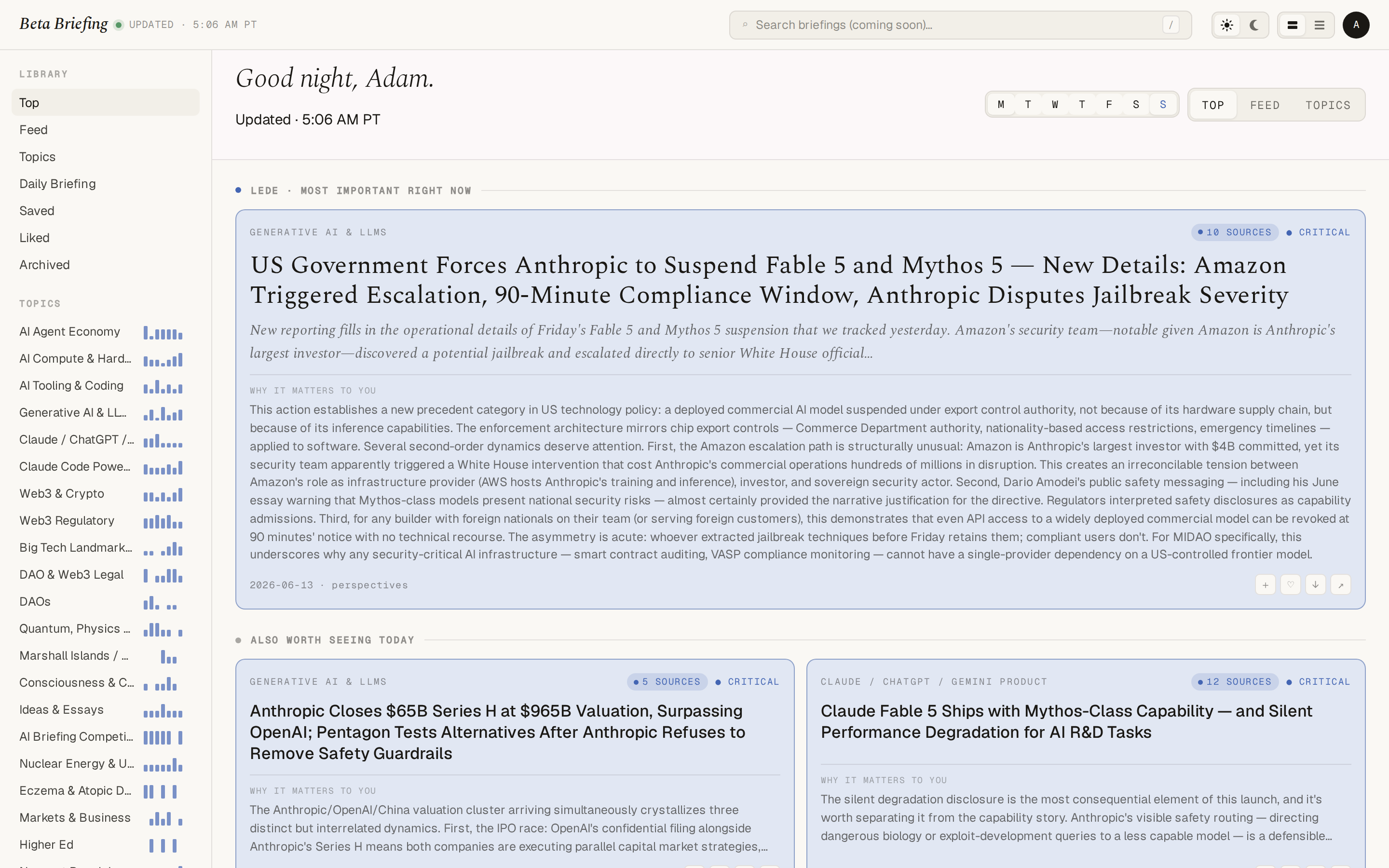
The dashboard organizes your stories into a few views:
- Top — the front page: the day's most important stories first.
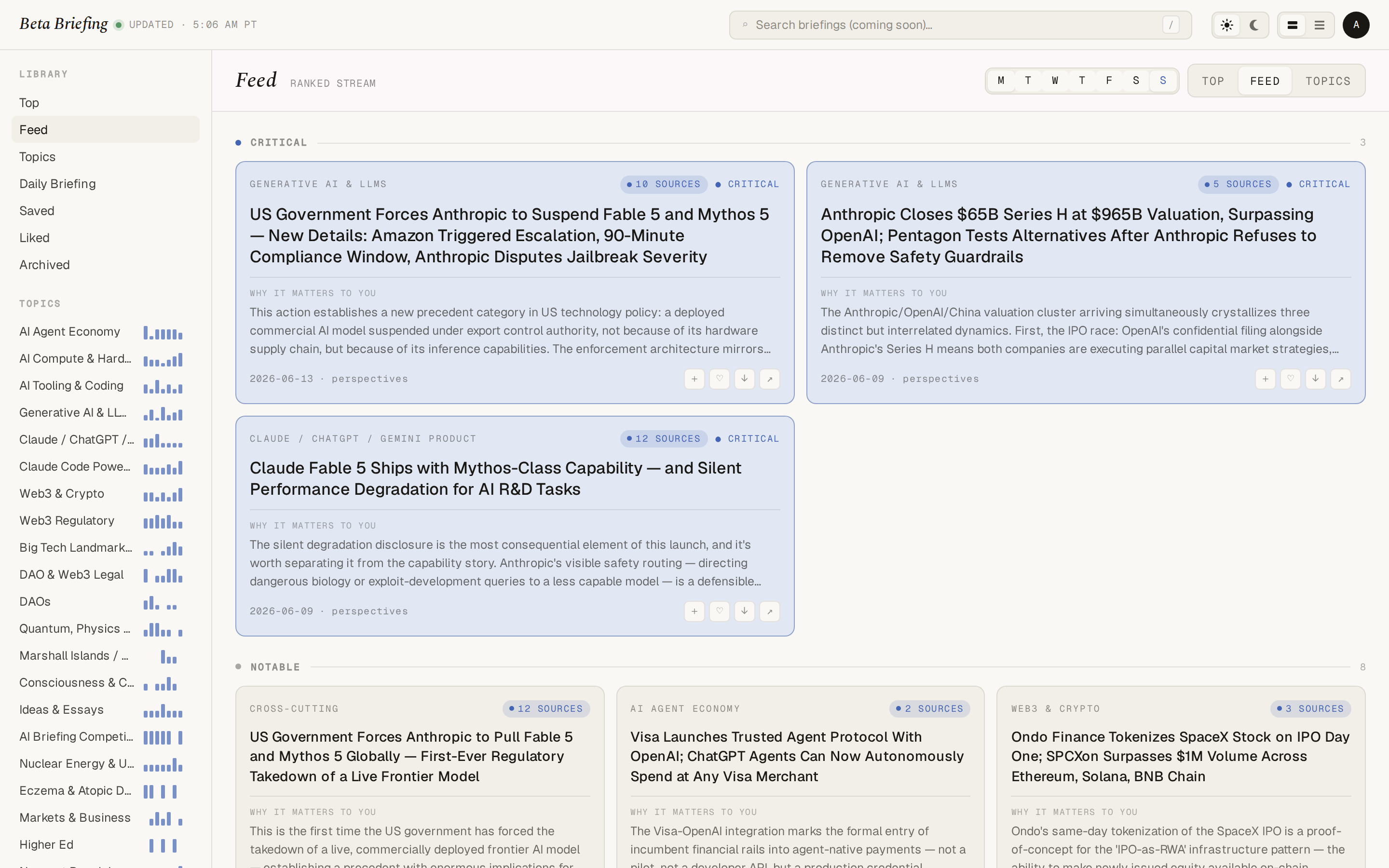
- Feed — everything, in order, when you want the full stream.
- Topics — your stories grouped by topic, with a page per topic.
- Daily Briefing — your most recent full edition, as delivered.
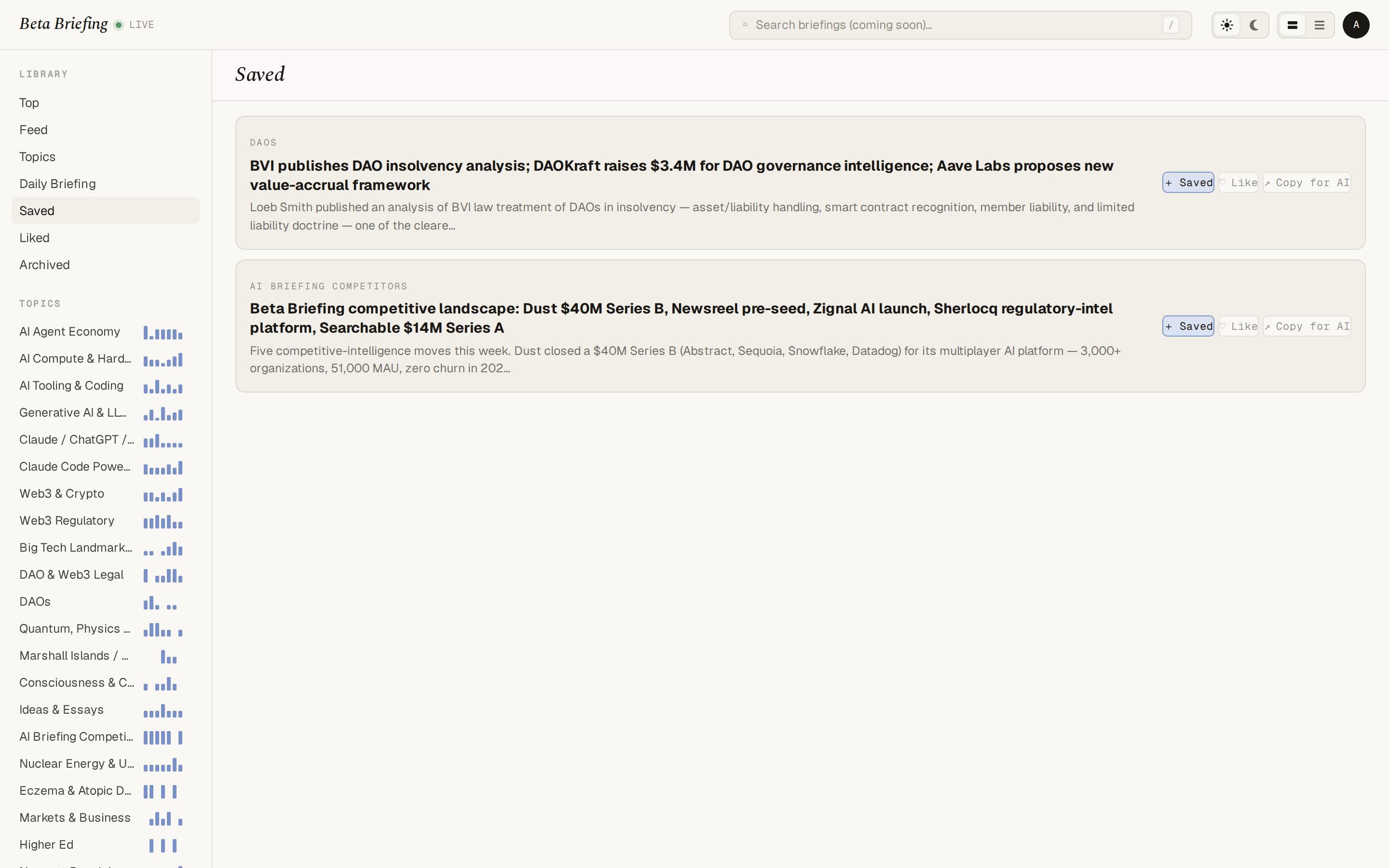
Alongside those, a side rail keeps your curated lists: Saved, Liked, and Archived.
Saving, liking, and archiving
Stories carry quick actions:
- Save — keep it for later; it lands in Saved.
- Like — mark what you found valuable; it collects in Liked.
- Archive — clear something you're done with; it moves to Archived (you can bring it back).
- Copy for AI — copy the story as a ready-to-paste prompt to dig in further with an AI assistant like ChatGPT, Claude, or Gemini.
The reader
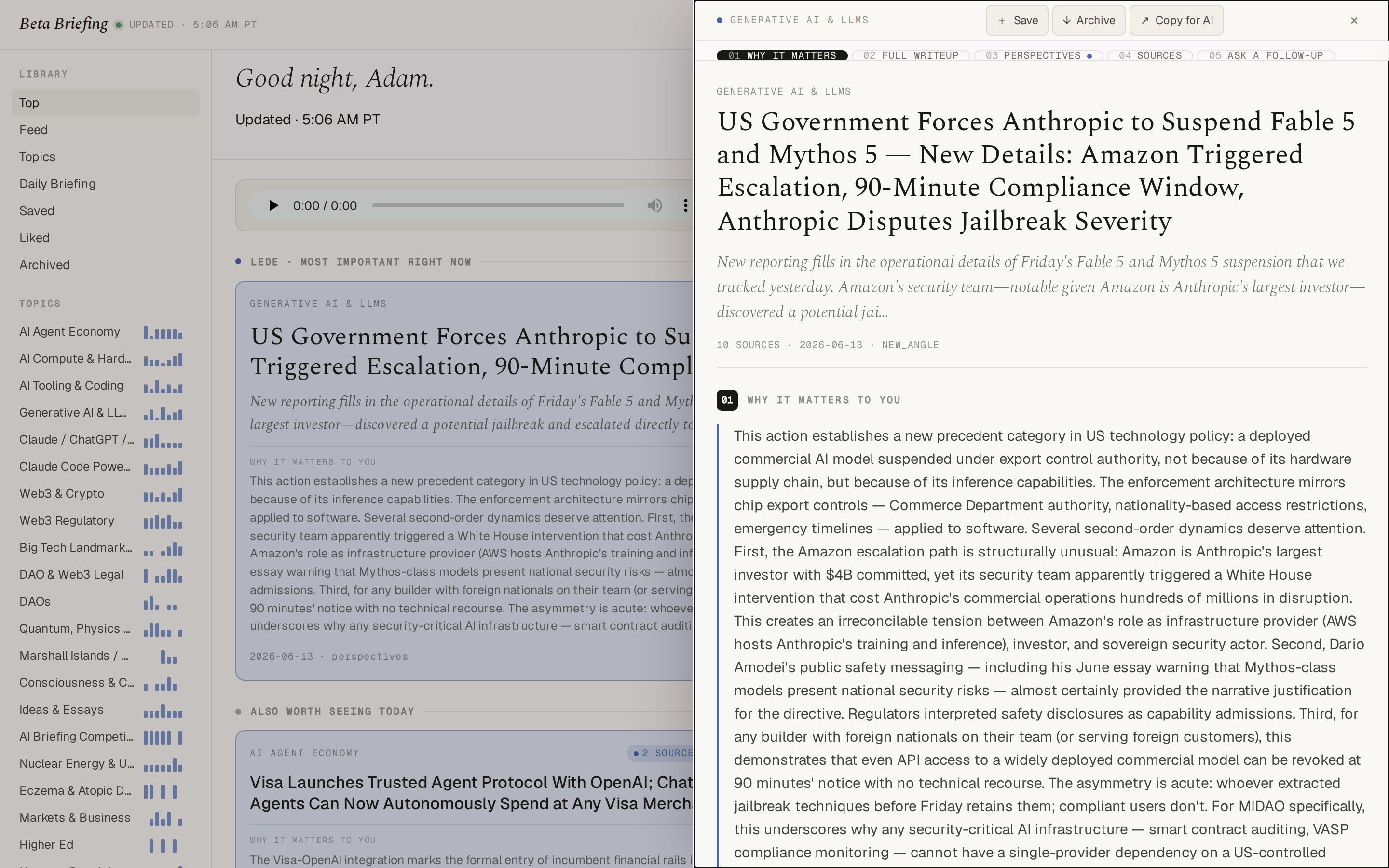
Click any story to open the reader — a focused panel with the full write-up and links to the original sources, without leaving the dashboard.
Topics and preferences
Your topics are the lens — they decide what the research pipeline looks for. To reshape coverage in plain language — adding a topic, dropping one, going deeper — use Smart Edit (app.betabriefing.ai/smart-edit); just say what you want and it sorts out the rest (see Your settings → Changing depth or focus).
Delivery preferences — your schedule, timezone, audio voice, and email theme — live on the Settings page (app.betabriefing.ai/settings).
Making a request
Want something the settings don't cover? Use Help & Feedback in your dashboard menu — it opens an email to the team at [email protected]. Use it for anything from "cover this beat" to "something looks off."
Next
- Audio & podcasts — listen on the go.
- FAQ — quick answers.